How do I get this toolbar?
You can also acquire access to these commands from the Documentation pull-down menu. From the Documentation pull-down menu, pick Sections > and cascade to their respective command options - see image below, right.

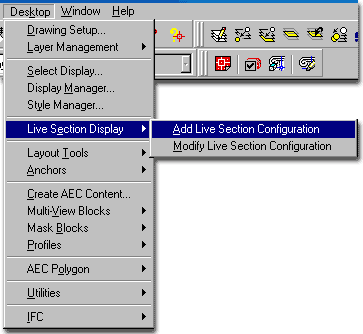
You can also acquire access to these commands from the Desktop pull-down menu. From the Desktop pull-down menu, pick Live Section Display > and cascade to their respective command options - see image two below, right.

In ADT 3.0 Elevations and Sections were broken up into two separate toolbars though they are basically identical objects using nearly all of the same tools. In other words, if you learn how to Generate one, you can apply the same knowledge to Generating the other.
When creating an Elevation or Section, you will need to make a few decisions about how you want to manage your product. For one, is your project a multi-floor job spread out over several files. If so, you will need to create a master Xref file where you will Generate your Elevation off of the Xref's.
The second thing to consider before you Generate your Elevation or Section, is a question of what type of object you want as a result. ADT offers two types, 3D Elevations/Sections and 2D Elevations/Sections. Personally, I prefer the 2D versions because I will eventually break the Live Link anyway to do the type of work that I need to do on a Construction Document. The 3D version offers interesting possibilities for presentation drawings and should be considered as an optional solution for creative needs.
2D Elevations and Sections now offer the ability to do linework editing without breaking the Live Link.

A Live Section is a bit of hocus-pocus; a mixture of something like Xref Clipping and Display Configuration. The details of it are actually rather interesting but in function, this tool has questionable return on investment. The main problems with it are that it does not offer Color / Lineweight flexibility like the 2D and 3D counterparts and you cannot use it in an Xref'd scenario.
Why I don't like them.
One of the thing I really dislike doing in most projects, is work too much with
the native file. I am a mad Xref user and I consider cutting sections in the native
file analogous to polluting it. Though Live Sections can be used in the native
drawing file without causing any harm to the normal use of that file ( 2D Plans, etc. ),
you can't really get them outside of that drawing file. You can use them for one of
many Layouts but you can't set up another drawing file and have them there via some form
of Xref's and Imported Display Configuration
Why you may want to use them.
The cool thing about Live Sections is that you are actually working with the
physical model itself and not some linked and copied object. You can toggle the
Display on and off easily via the Set Current Display Configuration button. It
doesn't appear to "bog" down your machine much with all sorts of new added
objects and features. It good for quick study work while designing a space.
 Unfortunately,
Sections are not as easy to generate as Elevations. For quick on-the-fly Elevations,
you can simply use the various View buttons but there are now default views that Slice
through building. If you are determined to find a fast solution, try using the 3D
Orbit Clipping Plane ( I don't like it much for a Section substitute but it's fast and it
gets you into a building space ).
Unfortunately,
Sections are not as easy to generate as Elevations. For quick on-the-fly Elevations,
you can simply use the various View buttons but there are now default views that Slice
through building. If you are determined to find a fast solution, try using the 3D
Orbit Clipping Plane ( I don't like it much for a Section substitute but it's fast and it
gets you into a building space ).
Once you are ready to create a real Section, there are 3 types to choose from: 3D Sections, 2D Sections and Live Sections. In the early Pre-design and Development phase of a project you may want to use the 3D Section because of the presentation options it offers ( like perspectives ). The Live Section options is much like a 3D Section but it works uses Display controls to change the appearance of the actual model you are working on. Live Sections are also a good option for early concept stuff, but I find the 3D Sections less problematic and they can be used on Xref's.
When the project begins to enter the Development phase and details are starting to form, you will most likely want to work with 2D Sections. Their ability to allow extensive graphic fine-tuning and linework modifications, while linked to the model, offer a nice transition option before the final Explode ( if required ).
The final step might likely be that your Sections are 2-Dimensional non-associated Lines, Plines, Hatches, Text and so forth - the way Sections have been done in AutoCAD for about 20 years now. You may be one of few fortunate people who won't end up at this step but will actually be able to keep your Sections linked to your model all the way through construction and even into archiving.
When you get ready to use the Generate Sections ( not Live Sections ) dialogue box, you will have 2 choices in how you want to take the next step. The first choice allows you to create a Section that is still 3-Dimensional but with the power to control lineweights relative to depth of field. The second choice allows you to create a 2-Dimensional Sections with lineweight control.
As you can see then, you might want to start with the 3D Elevation and then later move on to a 2D Elevation that eventually may end up as a non-associated 2D line Construction Document.
Model vs. Xref Plans
Assembling a body of work in order to create a Section is another subject that can be discussed and debated greatly. There does seem to be a majority vote on the Xref approach rather than attempting to build one model in one file that produces all documentation. Though I believe one individual could probably make the one-model-does-all scenario work rather well, I would never advocate such a solution. Even on a small project, like a one-room remodel, I rely on Xref's.
By separating as much as possible into unique files, you not only provide others with the opportunity to work on a project simultaneously, but you provide yourself with another form of Layering. Though I completely comprehend the idea that if more is in one file, you can more easily edit it, I have found that I am actually more likely to loose information in the clutter. Instead, I simply run many files open at the same time and refer back and forth when necessary and use by-lateral Xref'ing ( Overlays ).
By the time you are ready to Generate Sections, you should also have one or more Composite files ready since most of your working drawings probably have everything else Xref'd in. I usually create a Model file where I Xref everything in and add other things that I want for Perspectives, Renderings, Sections and/or Elevations; like 3D topographic contour work, street and curb information, adjacent and background information and decorative elements such as cars, trees and people.
| Menu | Documentation> Sections> Add Section Line |
 |
|
| Keyboard | BldgSectionLineAdd |
| Links | Section Line - Display Props - if you don't see a Section Line object as illustrated to the right in blue. |
| Section Bubble Letter - for how to change the letter/number | |
| Interior Elevations - for how to use the Elevation Mark as a Section tool. | |
| Section Marks - for how to use the Section Mark from the Documentation folders as a better annotation object |
Adding a Section Line is a far easier task than figuring out how to put a project together to take advantage of this tool. It's also base on all of the same principals used to create an Elevation.
Illustrated to the right, I show a simple project viewed from the top with the two points that were used to create an Section Line, highlighted in red. From two points selected along the side that you wish to "elevate", you get a bounding box that will eventually surround or envelope your model. The size and depth of your Section line ( square ) is not that important in this early stage of the Section creation process.
The Section Bubble is more of a tracking tool for you than for proper annotation; though you can certainly use it as proper annotation. There are better Section Marks in the Documentation pull-down menu > Documentation Content cascading menu.
For multiple Sections, you can draw an Section Line for each side or Copy one Section Line object, Rotate it and position it as you like.

| Menu | Documentation> Sections> Section Line Properties... |
 |
|
| Keyboard | BldgSectionLineProps |
| Links |
On the Dimensions tab of the Section Properties dialogue box, illustrated to the right, you will find an assortment of options for controlling what volume of 3D space lies within your Section and how you want that information broken up with respect to lineweights.
 Component Dimensions
Height - the Z-axis height of your Section bounding box. You could
limit the height to a single floor of a high-rise, for example, as illustrated to the
right.
Lower Extension - an amount of space extended below the default ground plane for an Section Line. The default will capture information that lies 12 inches ( 308 mm ) below the World Coordinate System or Ground Plane. When Use Model Extents for Height is checked this become irrelevant. Illustrated to the right, this option is used to capture the slab below the finished floor in a high-rise building.
A - Side 1 - length of the left side, looking straight up ( Front Section ). This can also be edited with Grips on the actual object itself.
B - Side 2 - length of the right side, looking straight up ( Front Section ). This can also be edited with Grips on the actual object itself.
C - Angle 1 - a taper angle for the left side, looking straight up ( Front Section ) based on a measure off of 90 degrees; i.e., 20 degrees will create an edge line of 110 degrees relative to zero. Use of negative values is allowed.
D - Angle 2 - a taper angle for the right side, looking straight up ( Front Section ) based on a measure off of 90 degrees; i.e., 20 degrees will create an edge line of 110 degrees relative to zero. Use of negative values is allowed.
 |
 |
Use Model Extents for Height - this checkbox, when checked, will automatically determine the Height required to create a full Section. Graphic Divisions from Cut Plane
Subdivisions |
When you select a Section Line object, you should see several Grip points activate that you can use to edit with. These Grip points correspond to the information and values that you set on the Dimensions tab of the Section/Elevation Properties dialogue box.
Grip Stretching Subdivision Lines is as easy as it gets because you only have one Grip to work with. Grip Stretching any of the four corners of a Section Line may pose more of a problem. Since the Section Line object supports irregular shaped tetragons, you can stretch any corner uniquely. If you don't want an irregular shape, simply use the Shift key while making your Grip spots HOT. This will allow you to work with two Grips at the same time and thus you can Grip Stretch one side evenly to exclude or include more of your project.

 The Section Line object in ADT does not have a Style but you can use Entity
Display... to access display controls. On the Object Specific pop-up menu,
illustrated left, select Entity Display... On the Entity Display dialogue box choose
a Display Representation, like Plan and pick the Edit Display
Props... button.
The Section Line object in ADT does not have a Style but you can use Entity
Display... to access display controls. On the Object Specific pop-up menu,
illustrated left, select Entity Display... On the Entity Display dialogue box choose
a Display Representation, like Plan and pick the Edit Display
Props... button.
The only Display Props you can edit for a Section Line object are on the Layer / Color / Linetype tab. On this tab you should find three Components: Defining Line, Subdivision Lines and Boundary.

From the Display Props tab, in Plan view or other Representation Sets, you can use the Edit Display Props... button to access the component's Layer/ Color/ Linetype tab.
Notice on the Section Line's Entity Properties
dialogue box, right, that you have three components that you can work with: Defining
Line, Subdivision Line and Boundary.
The Defining Line represents the side, direction and Width of the Section you intend to create.
The Subdivision Lines are internal Lines that you can set on the Dimensions tab of the Section/Section Line Properties dialogue box. These Lines can be used to control Color and Lineweight changes within the Section you generate with this Section Line. Typically, you will use this technique to imitate the way we have traditionally shown lines as lighter when farther back.
The Boundary represents the area that surrounds your building or project.

| Menu | Documentation> Sections> Create Section... |
 |
|
| Keyboard | BldgSectionLineGenerate |
| Links |
When you are ready to actually create a Section, you will use the Generate Section/Elevation dialogue box, illustrated to the right, to define the type of Section you want; what you want in it, what it should be displayed like and where you want it placed.
Both types are linked to the original drawing and thus can be updated to reflect your design changes at any given time. This will be discussed below.
Result Type
3D Section/Elevation Object - a copy of your drawing presented as a
Section object where subdivisions and other Section Line settings are displayed.
2D Section/Elevation Object with Hidden Line Removal - a projection on to a plane of your drawing where subdivisions and other Section Line settings are displayed. You can think of this as being much like a block or Xref associated with the Section Line and your original drawing. If exploded, you will get 2D line work.
Style
to Generate - the default "Standard" is all that
you will find anywhere in ADT 3.0 until you create your own. A custom Style will
allow you to refine line colors and weights for objects within your 2D Section.
Save Copy of User Edits
- this option is only available when Updating a Section or Elevation that
has had Linework Editing.
Selection Set
Select Additional Objects - this button is active only after a Section
Line has been associated with objects. It can be used to select more new objects to
be associated. This may be useful when you want to create a set of Sections from the
same Section Line where each one contains different or more information.
Select Objects ( Reselect Objects ) - this button changes once a Section Line has been associated with objects. This button allows you to reset what you want associated with your Section Line and thus, using the Shift key, you can also deselect objects.
Display Set - this should be an obvious option for you at this stage of a project but if there's still some uncertainty, you should read up on Display Representation Sets. Basically this is just how you want objects to look in "Section View". One example is how Doors have the swing indicated by centerlines.
Placement
New Object - this radio button tells this dialogue box that you want to
create a new Section object. Leaving this radio button checked while trying to
adjust an existing Section will result in duplicate Section objects right on top of each
other, so be careful about this option. A good way to avoid making a mistake is to
select the Section object itself, right-click, and then select the Update option on the
object-specific pop-up menu.

Pick - this button with X, Y and Z corresponding values simply allows you to locate the lower left insertion point of your Section object. Since you can move it at any time after creation, it isn't a big deal where you put it.
Replace Existing - this radio button should be used when you are in this dialogue box without having used the Update route. In other words, if you simply used the Generate Section command or button to work on an existing Section object. By checking Replace Existing, you will be asked to Select Object. This object has to be the existing Section object that you intend to modify or update. After doing this selection, you can then proceed to Reselect Objects, deselect objects or select Additional Objects. Once again, it's a lot easier to simply pick the Section object, right-click, and use the Update option.
| Links | 3D Elevation - Display Props - for how to change the resultant colors |
| Entity Properties - 3D Elevation - Component Layers - Example - for an example of how the lineweights can look on a print. |
Illustrated to the right, I show the default 3D Elevation object and how the same 3D Elevation object can be adjusted to reflect the Color changes ( lineweights ) for the Subdivision lines on the Elevation Line object.
To change the Colors, as illustrated, select the 3D Elevation object, right-click and use Entity Display... as outlined below.

| Links | 2D Section/Elevation Styles - Display Props tab - for how to change the resultant colors |
| 2D Section/Elevation Styles - Display Components - Relationship Map - for an example of how the lineweights can look on a print. |
Illustrated to the right, I show the default 2D Elevation object and how the same 2D Elevation object can be adjusted to reflect the Color changes ( lineweights ) for the Subdivision line on the Elevation Line object.
To change the Colors, as illustrated, select the 2D Elevation object, right-click and use Entity Display... as outlined below.

These Configurations tell ADT how to represent your Doors, Windows and other objects in an elevation or section as opposed to a plan view. A door, for example, will have a frame with a swing triangle in an elevation but not in a plan.
When you select the Section_Elev Display Representation Set, you will be prompted to provide how far you want your new elevation object away from the actual model. Think of this as the Move command in AutoCAD.
When you have placed the new elevation object, it should look something like the illustration to the right. It is basically a duplicate of your entire model. This new copy is actually linked to the original via the Section Line.
| Menu | Documentation> Sections> Update Section... |
 |
|
| Keyboard | BldgSectionUpdate |
| Links | Generate Section/Elevation dialogue box - for information on all of the other features not discussed here for Updating. |
Use the Update Section button for 2D and 3D Sections whenever you have made changes to the base object(s) from which your Section was derived. At times, when you are making other changes for Colors, Styles and so forth, you may need to use this button to get those changes to take affect correctly.
Only 2D Sections offer something different on the Generate Section/Elevation dialogue box when you are Updating. Because a 2D Section utilizes a Style, you can use the Save Copy of User Edits checkbox to save Edited linework that was done to a 2D Section object. If you don't check this box, any edits will be deleted and you are basically just regenerating the 2D Section object.
Style for Copy - a drop-down list that offers any 2D Section/Elevation Styles to save the Edited linework to. That's the theory anyway, but my tests find that my edited linework does not actually get embedded into a Style; it is just copied out as a separate set of objects on top of the original Style. In other words, Saving guarantees that your edits are Copied out and choosing a Style for Copy associates your Saved and Copied linework with that Style ( this is so you can get gray lines to become green dashed lines, for example ). Read the Summation, below, for more information.

| Menu | Documentation> Elevations> Batch Update Elevations |
| N.A. | |
| Keyboard | 2dSectionResultRefresh |
| Links |
This tool allows you to update one or more Section objects without having to use the Generate Section/Elevation dialogue box and thus acts more like a Refresh tool.
By selecting one or more Section objects and right-clicking, you can use the Refresh option on the object specific pop-up menu to achieve the same results
| Menu | Documentation> Sections> Section Properties... |
 |
|
| Keyboard | BldgSectionProps |
| Links |
This button offers vary little to discuss. For 2D Elevations and Sections, you can change the Style and for 3D Elevations and Sections, you can only change position based items on the Location tab since 3D Elevations and Sections have no Styles.
You may want to use this button to provide a Description, Attach notes and Property Sources.
| Menu | Documentation> Sections> Edit Linework |
 |
|
| Keyboard | 2dSectionResultEdit |
| Links | Entity Properties - 2D Section/Elevation Styles - Component Layers - for information on how to access the Component Index Properties for color, lineweight, linetype and other changes. |
The Edit Linework button offers a unique opportunity to change the Component assignments of lines within an existing 2D Elevation or Section. When you select a line, for example, on a 2D Section, you will be prompted to specify a Component Index number for how you want that line to Display ( based on how that Component is set to Display in the Layer /Color /Linetype tab of the Entity Properties dialogue box.
Unfortunately, as I am sure you thought at first glance, this tool does not allow for "real" editing and you cannot use it to Modify lines or Erase them. You can however, assign linework to component layers that are turned off or have different colors and/or linetypes to achieve results similar to "real" editing.
Note:
Use the F2 key to see the whole list of 2D Section/Elevation
Components when you use this button.
Command: _Aec2dSectionResultEdit
Select linework to edit:
Select linework to edit:
Fixed Components
1. Defining Line
2. Hidden Vectors
3. Erased Vectors
4. Subdivision 1
5. Subdivision 2
6. Subdivision 3
7. Subdivision 4
8. Subdivision 5
9. Subdivision 6
10. Subdivision 7
11. Subdivision 8
12. Subdivision 9
13. Subdivision 10
User Components
14. Walls
15. Doors
Enter component index<1>: 4
<this will change the selected Linework to match Component 4's settings>
Command:

Read Note on Update Section for information about what happens to Edited Linework after an Update.
| Menu | Documentation> Sections> Merge Linework |
 |
|
| Keyboard | 2dSectionResultMerge |
| Links |
Use this tool to Merge new linework into your 2D Elevation/Section or any changes made with the Edit Linework tool.
Illustrated to the right, I show an existing 2D Section object where some changes from a previous Edit Linework reside on top of the new Updated 2D Section and a new line drawing of a door handle ( sorry this was the best example I could come up with on a Monday ). By using the Merge tool, you can merge linework into a 2D Section so that it behaves as part of the Section object.
This work will be lost, however, if you Update and don't select the Save Copy of User Edits checkbox.

I figure that since I had enough difficulty with this last set of options that I had to discuss it with Autodesk's QA people, I should add a summation so you won't get caught in the same maze of semantics.
From my exchanges with Autodesk, the concept behind the Update with the Save option was to allow a user to compare the original 2D Section/Elevation with the last set of Edited Linework; i.e. the edited linework is copied out and placed on top of the actual 2D Section/Elevation. During the Update process, you can Save Copy of User Edits and apply this copy to a particular Style ( Style for Copy ).
My problem in understanding all of this arose from the semantics of the word "Save". I took it literally as if my Edited Linework would be "Saved" into a selected Style, but that really isn't what happens. Your Edited Linework is simply copied out and the Style you choose to Save for Copy is merely the Style you wish to use for the copied linework. In other words, lets say you edited some linework and assigned some window mullions to a Component Layer for index 9 and these lines turn blue. If you do the Update, Save Copy of User Edits and then choose another Style for Copy, those very same lines that were blue could now become dashed and green; if the Component Layer for index 9, in this new Style, was set that way.
 My personal confusion led to problems because what I expected was to have a
way to actually Save or Record my Edited Linework in a Style so that I would never loose
those changes. This can't be done so you have a couple of choices on how to work
with these tools.
My personal confusion led to problems because what I expected was to have a
way to actually Save or Record my Edited Linework in a Style so that I would never loose
those changes. This can't be done so you have a couple of choices on how to work
with these tools.
One option is to allow the Copy of User Edits to reside outside and above your 2D Section/Elevation and every time you Update, they just stay there. The problem with this option is that if the Model changes in the areas where your Edited Linework was done, it won't be reflected correctly in the Edited Linework - since that part really isn't linked.
The other option is to use the Merge Linework tool after every Update. The only benefit this has is that you don't have to deal with double lines which can cause bad printing results; especially where you have continuous lines under dashed lines. If you use the Merge technique, then you also have to remember to use the Save Copy of User Edits at every Update.
Either way, when working with Updates, your Edited Linework is really nothing more than lines copied out of the 2D Section/Elevation. This is very much like using the Express Tool "Copy Nested Entities" to copy linework out of an Xref and placing them on top of the Xref.
 The 3D Section object in ADT does not have a Style but you can use Entity
Display... to access display controls. On the Object Specific pop-up menu,
illustrated left, select Entity Display... On the Entity Display dialogue box choose
a Display Representation, like Plan and pick the Edit Display
Props... button.
The 3D Section object in ADT does not have a Style but you can use Entity
Display... to access display controls. On the Object Specific pop-up menu,
illustrated left, select Entity Display... On the Entity Display dialogue box choose
a Display Representation, like Plan and pick the Edit Display
Props... button.
The Display Props for a Bldg Section ( used for 3D Sections )object offers many Components on the Layer / Color / Linetype tab that are primarily designed to control lineweights.

On the Layer /Color /Linetype tab of the Entity Properties dialogue box, illustrated to the right, you will find the power to control the Color ( and consequent Lineweight for Color Dependant Plot Tables or .CTB files ).
Illustrated to the right, I show that there is only one Display Representation option "Sub-divisions" on the Display Props tab of the Entity Display dialogue box. I also show that I have Attached an Override for the 3D Section/Elevation Entity Property Source since I want these changes to be reflected on this 3D Section object only and not all 3D Elevation and Section objects in my drawing.
Defining Line - is the default color of your 2D Section but is primarily designed for the outline of a Sectional Cut right at the defining point of the cut. If you have and use the Subdivisions, this Component Color will not matter.
Subdivision 1 - 10 - a default set of subdivisions that are automatically associated with physical subdivision lines on your Elevation or Section Line object.

Illustrated to the right, I show the default 3D Section object and how the same 3D Section object can be adjusted to reflect the Color changes ( lineweights ) for the Subdivision lines on the Section Line object.
To change the Colors, as illustrated, select the 3D Section object, right-click and use Entity Display... as outlined below.
Notice that for a background, I show what the multicolored 3D Section object might look like when plotted in black and white. If find these particularly useful, even more so in perspective as shown, to help communicate internal design features that don't show up well in full isometric or perspective views. In a way, you get quick interior elevations this way.

| Menu | Documentation> Sections> Section Styles... |
 |
|
| Keyboard | 2dSectionStyle |
| Links | 2D Section/Elevation Styles - Display Components - Relationship Map |
For 2D Section objects, you can use the Style Manager to load, modify, delete and create new 2D Section Styles.
Illustrated to the right, I show the process of creating a New 2D Section Style that I have Named "Custom Section Style". By double-clicking on this new style, you will invoke the 2D Section/Elevation Styles dialogue box - as illustrated.
The General tab provides access to the Name and Description fields for a Style; plus access to the attachment of Notes and Property Sets.

| Links | Unique Component Layers |
| 2D Section/Elevation Styles - Display Components - Relationship Map |
On the Components tab of the 2D Section/Elevation Styles dialogue box you can use the Add button to create custom Component names for use on the Design Rules tab and on the Layer/ Color/ Linetype tab of the Entity Properties dialogue box.
The basic concept behind this option is to allow you to define Layer/ Color/ Linetype Component Names that you can use to assign custom Layers, Colors and/or Linetypes for objects within your Section.
Illustrated to the right, I show that I have Added two unique Components named for what I intend to used them for: Plumbing Fixtures and Doors. Follow the discussion below and you can see how I use these Components to change the line colors and weights of objects within a Section object.

| Links | 2D Section/Elevation Styles - Display Components - Relationship Map |
| 2D Elevations - see this for a different screen capture |
On the Design Rules tab of the 2D Section/ Elevation Styles dialogue box you can use the Add button to create custom rules for what objects, within your Model, will be assigned unique characteristics in the 2D Section.
The basic concept behind this option is to create a "filter" that finds objects within your Section Line that match your specifications for Color and Context. Using this "filter" you can have the Design Rules look for objects that have the Color 150, for example, and lie in the closest front portion of your Subdivided Section Line, change to one of your custom Component Names ( these are created on the Components tab ).
Illustrated to the right, I show that I have Added two unique Design Rules. Rule 1 finds objects in my example Model whose Layer is set to a Color of 140 and lie Anywhere ( Any Visible) within my Section Line and assigns them to the custom Component Name "Plumbing Fixtures" that I created on the Components tab.
Rule 2 finds objects in my example Model whose Layer is set to a Color of 150 and lie Within Subdivision 1 of my Section Line and assigns them to the Component Name "Subdivision 3" that I intend to set to a specific color later on the Component Layers.
Note:
You don't actually need to create unique Component Names for the Design Rules to work
correctly. You can simply assign objects to a Subdivision that hasn't already been
used. The nice thing about using Named Components is that you can easily track them.
Rule - an index number automatically generated to assist in tracking.
Color - use the Select Color dialogue box to set the color of the objects you are filter for ( not against ) If you want to change your Walls and you know they are set to Color 50, then you set Color to 50.

Context - use the drop-down list to help filter for objects you set by Color. You can use Any visible or Any visible or hidden to work with your Color selection to find all instances of objects with that Color. You can also refine your filter by specifying that you only want objects within a particular subdivision ( as illustrated ). This is how you can make Walls closer in an Elevation or Section darker than those beyond - even if they are in the same Subdivision.
Component - use the drop-down list to specify what to do with the objects that have been filtered for by the Color and Context options. Component Display, if you realize by now, is controlled on the Layer / Color / Linetype tab of the Entity Properties dialogue box for a particular object or object Style. Using the pre-defined "SubDiv #" choices is okay as long as you pick numbers out of your range for the physical subdivisions that you may have on your Section or Section Line object. You can also use unique Components, as illustrated with "Plumbing Fixtures", by first creating them on the Components tab of this dialogue box - see below for how to change their colors.
The Display Props tab on the 2D Section/Elevation Styles dialogue box provides access to the display characteristics of the components of your 2D Section objects; such as what Subdivision components are turned on or off, linetypes, layers and colors.
 Illustrated to the left, is another way to access the Display
Props tab; select the specific object, right
click on your mouse to invoke the object-specific pop-up menu and select Entity
Display... See discussion directly below.
Illustrated to the left, is another way to access the Display
Props tab; select the specific object, right
click on your mouse to invoke the object-specific pop-up menu and select Entity
Display... See discussion directly below.

On the Layer /Color /Linetype tab of the Entity Properties dialogue box, illustrated to the right, you will find the power to control the Color ( and consequent Lineweight for Color Dependant Plot Tables or .CTB files ).
Illustrated to the right, I show that there is only one Display Representation option "General" on the Display Props tab of the 2D Section/Elevation Styles dialogue box. I also show that I have Attached an Override for the 2D Section/Elevation Style Property Source since this is a custom Section Style that has properties I don't want placed upon other Elevations or Sections.
Defining Line - is the default color of your 2D Section but is primarily designed for the outline of a Sectional Cut right at the defining point of the cut. If you have and use the Subdivisions, this Component Color will not matter.
Hidden - turned off by default. You can use this Component when you use the Edit Linework tool to assign lines within your 2D Elevation or Section a Hidden line appearance. Just make sure it's turned on here.
Erased - turned off by default. As with the Hidden Component, you can use this Component when you use the Edit Linework tool to assign lines within your 2D Elevation or Section an Erased appearance. To achieve this effect, leave the Component turned off.
Unknown Component - I am not sure about this one but I believe it's like a wildcard Component that you can use creatively - especially with Edit Linework, but it may be used automatically during such work, I don't actually know - hey, it's unknown.

Subdivision 1 - 10 - a default set of subdivisions that are automatically associated with physical subdivision lines on your Elevation or Section Line object.
Unique Component Names - these come automatically when you create a custom Component on the Components tab of the 2D Section/Elevation Styles dialogue box.
| Links | 2D Section/Elevation Styles - Components tab |
On the bottom of the Layer /Color / Linetype Component list, you should now find any custom Component Names that you created and used on the Components and Design Rules tabs of the 2D Section/Elevation Styles dialogue box. By creating unique components, you can color them for lineweight control, as illustrated to the right.
From the examples and discussion above, the plumbing fixtures will now be assigned Color 6 - Magenta.

| Links | 2D Section/Elevation Styles - Components tab |
Though you should be able to create Custom Display Components here on the Entity Properties dialogue box, I have not been able to do it unless I had extra rules on the Design Rules tab of the 2D Section/Elevation Styles dialogue box. When you create Components on the Components tab of the 2D Section/Elevation Styles dialogue box, they show up here automatically and can be removed here as well. If you attempt to Add one here, make sure it works by exiting all dialogue boxes and then return to this tab.
For better results, use the Components tab of the 2D Section/Elevation Styles dialogue box.

 Illustrated to the right, is an overall map of how all the pieces come
together for unique and custom Components.
Illustrated to the right, is an overall map of how all the pieces come
together for unique and custom Components.
Illustrated to the left, is an example of how you can use these unique Components to adjust the Colors and Lineweights of 2D Sections to match you want them to look by traditional means.
By using the examples illustrated above, I was able to make the Cut Line very heavy and I was able to make unique adjustments to internal components like the Doors and Plumbing Fixtures so they would be a bit lighter than other objects within the same Subdivision Line.
Objects beyond Subdivision 1 can be controlled in a similar fashion or simply be allowed to be lighter and monotone - an easy and effective solution.

| Alt. Menu | Document> Sections and Elevations> Add Section Line |
 |
|
| Keyboard | LiveSectionEnable |
| Mouse | Select Section Object ( Defining Line ), Right-click and select "Enable Live Section" |
| Links |
In order to create a Live Section, you need to be in the native drawing file ( no Xref's ) and you need a Section Line Object or Elevation Line Object like the ones used to create 2D and 3D Sections/Elevations - see Add Section Lines..
Once you have a Section Line Object placed where you want to cut a Live Section, simply Select the Section Line Object's Defining Edge, right-click to Select "Enable Live Section". You can also type "LiveSectionEnable" on the command line to be queried to "Select sectoin or elevatoin lines:"
When a Section or Elevation Line Object has been "Enabled" for Live Section, the result should be obvious emediately. If you do not see anything different, make sure to view your drawing file in an Isometric View or other 3D View and confirm that the Definining Edge actually passes through your ADT objects.

Since Live Sections are managed in the Display Manager, you can switch between numerous Live Sections and your Standard or Work Display Configurations at the click of your mouse - see illustration, left.
Live Sections don't remove all objects from the Display, so you may have to do some minor Layer Management in manual mode. Such objects as common lines, for example, will need to be turned off manually - as illustrated to the right.


| Menu | Desktop> Live Section Display> Modify Live Section Configuration |
 |
|
| Keyboard | SectionConfigurationModify |
| Links |
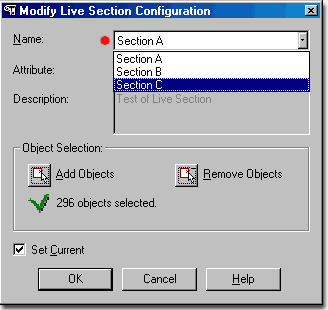
The Modify Live Section Configuration dialogue box, illustrated to the right, is identical to the Add Live Section Configuration dialogue box. When you select the Modify Live Section button, you should find on the command line, the option to "Select section line or [Name/Dialog:]" which should be self-explanatory.
Using the "D" for Dialog option on the command line, as illustrated below, allows you to pick your Live Section in the Name drop-down list on the Modify Live Section Configuration dialogue box; as illustrated to the right.
Command: _AecSectionConfigurationModify
Select section line or [Name/Dialog]: D
See Add Live Section Configuration dialogue box for explanation of other options on this dialogue box.